Web Site Features
The following is an explanation of Southeastern's Home Page on it's web site www.sefl.com. Our site has been designed specifically for our customers to be informative, efficient, and easy to use. Check out our FAQ page for answers to your most commonly asked questions.
If you are unable to find the help you need here, please contact our Help Desk.
Southeastern Freight Lines' Standard Policies (Privacy, Terms of Use, Delivery & Refund)
Home Page
Southeastern's home page is divided into 3 basic areas:
-
Header Section -
The Header Section consists of 3 areas:
-
Informational Links
- Contact Us - This option allows you to E-mail any department or service center in our system. You can send E-mail attachments for Word or Excel files as needed.
- Careers - This section provides information about our present employment opportunities by job description and location. After reviewing these opportunities you can also submit an online application.
- Blog - This links to SEFL's company BLOG. Check here for current events and stories.
-
MySEFL -
This link provides a quick way for logging into the MySEFL portion of the web site.
From within our Roll-over menu tabs, there are certain options which require a MySEFL
login and password. These options, as denoted by the secure icon
 ,
provide a collection of advanced web-based applications and reports
to make it efficient and easy to do business with Southeastern. Because these applications utilize the
customer's confidential information, this section also requires a customer
id and password for access. The customer only has to sign-on once to have
access to all the applications such as customer specific reports,
rates quotes, bill of lading generation and claims filing.
If you are interested
in taking advantage of these services please go to
My SEFL
and register for your id and password.
,
provide a collection of advanced web-based applications and reports
to make it efficient and easy to do business with Southeastern. Because these applications utilize the
customer's confidential information, this section also requires a customer
id and password for access. The customer only has to sign-on once to have
access to all the applications such as customer specific reports,
rates quotes, bill of lading generation and claims filing.
If you are interested
in taking advantage of these services please go to
My SEFL
and register for your id and password.
- Roll-over Menu Tabs - The key information and applications are accessed through a series of 6 roll-over menus provided at the top half of the Web Page. These links range from general company information to full web-based applications requiring secure access.
- Breaking News Section - This section contains a rolling banner of current news such as the current fuel surcharge rates and important weather alerts. As an example, when a hurricane is threatening our service area, you will see hurricane alerts to keep you informed. Simply click on the banner to receive a current update. It also links you to weather.com to receive projections on the weather.
-
Informational Links
- Quick Access Boxes - There are 4 boxes in the middle of the home page which provide quick access to Tracing, View POD/BOL, Service Times, and Rate Quotes. The Tracing box is great for quickly checking on that one shipment. The View POD/BOL box is a link for quick access to the Document Retrieval page. The Routing Guide box is an online tool that provides not only the transit time information, but also the origin/destination service centers, as well as the direct, partnership, and interline information. The Rate Quotes box is a link for quick access to the Rate Quotes page.
- Footer Section - Provides informational icons and address information for Southeastern Freight Lines' web site and social media access. A site map is provided to aid in navigation throughout the entire site.
Our History - This section provides a brief description of our company history and our commitment to our people, customers, and quality process. This section also provides graphics denoting our revenue growth and profitability trends.
Quality Process - This section describes our commitment to continuous measurable improvement in all processes utilizing our quality process. Southeastern has been a leader in the application of process management and statistical process control in the motor carrier business.
Quality Awards - This section lists a few of our quality awards. We have been honored for service excellence with over 300 quality awards from customers and trade associations.
Service Centers & Transit Maps - This section provides a name, address, and telephone listing of all our service centers. In addition, you can view/print transit service maps from this section and even obtain driving instructions to the service centers from your current location.
Sustainability - This section provides information about our efforts to reduce the environmental impacts of our services.
Press Releases - This section will provide current and past press releases and articles on our company.
Eagle Eye News - the Eagle Eye News is Southeastern's internal newspaper that provides insight into the company's culture, customer recognitions, innovations, new services, and quality process.
Customer Testimonials - Read what our customers are saying about us.
Regional LTL Services -
Special Services - This section provides information about specialized services such as carpet, assembly/distribution, pallet decks, responsible care (chemical industry certification), and truckload operations.
National Partnerships - This section provides information on the partnerships that Southeastern has with several other motor carriers to provide national coverage. These partnerships are connected via computer access and provide seamless tracking capabilities from pickup through delivery. The section also provides Internet "Hot Links" to our partners' web sites.
International Service - This section provides an overview of our service to Puerto Rico, Canada, Mexico and the U.S. Virgin Islands.
Guaranteed Service - This section provides an explanation of Southeastern's Excelerated guaranteed service options, when time really matters.
Full Value Insurance - This section provides information about Southeastern's Full Value Insurance availability. There is an introduction video and calculation sheet and form to apply for this service.
Logistics Solutions - This section provides information about Southeastern Logistics Solutions.
Advanced Shipment Processing -
SEFL Website - This is a link to this help document.
MySEFL - Secure Website - This link takes you to the login page for our secure web site. Once you are logged in, you will be able to get charges when tracing pro numbers and access other secure options like rate quotations, Bill of Lading creation, submit and inquire on pickup requests, and even request customized reporting options.
EDI - Electronic Data Interchange -
Web Connect - Web Services/Internet APIs
- Web Connect Services allows our customers to pull shipment information
directly from our web site into their company's web page or information system.
This link provides documentation on the
Web Connect Services provided by Southeastern to our customers.
If you are in search of documentation and help on how to programmatically talk with Southeastern's
provided web services and other connection technology, then please review this page.
-
How to Use
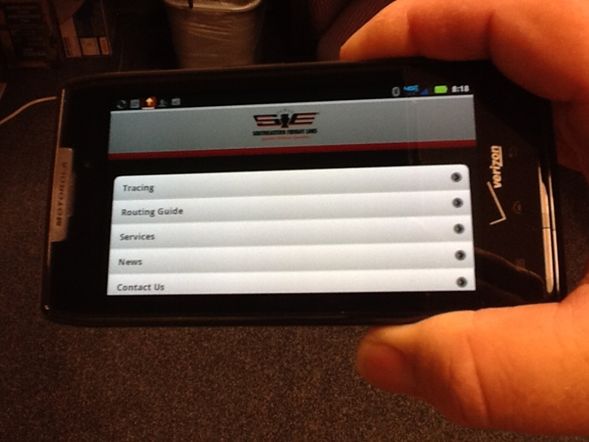
Southeastern goes Mobile allowing you to access many of Southeastern’s web site capabilities such as tracing, routing, and others on your smart phone or tablet. We have tailored this web application to allow easier access to our most popular web site applications in the limited space of a smart phone screen. To access the mobile app, enter www.sefl.com/mobile into your smart phone browser. The webapp will appear on your smart phone giving you access to tracing, routing guide, services, news, and contact information. Select the application from the menu and enter your desired information. It’s that simple. -
How to Store Icon
You can store an icon on your smart phone to give you access to our webapp at the touch of your finger. While various smart phones follow different processes to store and icon, they do follow a basic flow. If this does not work on your phone, check with the vendor’s web site and follow their process, or ask your kid how to do it!
- Access www.sefl.com/mobile on your browser.
- Bookmark and save the site using your browser’s bookmarking capability.
- Add the saved bookmark (shortcut) to your home to store the SEFL icon.
Downloads - This section provides information and instruction on the ability to download our Transit time files.
Rules & Special Services Tariff
A listing of the most commonly requested special services and the charges for each.
Fuel Surcharge
Due to the excessive costs for diesel fuel, Southeastern Freight Lines implemented a fuel surcharge effective September 15, 1999. The charge will remain in effect as long as the U.S. National Average Diesel Fuel Index remains at or above $1.10 per gallon.
Holiday Schedule
Current holiday schedule of when our offices will be closed.
Common Forms & Documents
This option allows you to view and print several special documents:
- SEFL Bill of Lading - You can print a copy of the SEFL Bill of Lading
- SEFL Bill of Lading Preparation Guide - This is an online guide to aid you in filling out a Bill of Lading
- VICS Bill of Lading - You can print a copy of the VICS Bill of Lading that has been accepted as the industry standard bill of lading.
- Supplement to the VICS Bill of Lading - This is a continuation page to the VICS B/L.
-
Blind/Hidden Shipment Form
- Online form that can be printed or filled out and then printed to create a blind shipment.
Blind shipments are defined as shipments that the physical shipper does not know to whom the shipment is consigned nor does the consignee know who the originated the shipment. - Full Value Insurance Calculator - Worksheet to determine the cost for Full Value Insurance.
- Full Value Insurance - Form for creating a Bill of Lading for a shipment with Full Value Insurance coverage.
- Canadian Xpress Pass Bill of Lading - This is a Canadian Bill of Lading that contains both the bill of lading and commercial invoice. This is a convenient way of shipping to Canada where a copy of the commercial invoice is required on all shipments.
- Mexico Bill of Lading - This is a Bill of Lading form that can be used for shipments to Mexico.
- Simplified Claim Form - In the event you do not want to file a claim electronically, you can print a copy of the standard claim form and present manually with supporting documentation. A copy of the commercial invoice, freight bill and any supporting photographs or paperwork would be beneficial.
- Overcharge Claims Form - Online form for creating an Overcharge Claim.
- Certificate of Liability Insurance - This document provides a copy of Southeastern's liability insurance coverage.
- Hazardous Material Certificate of Registration - This document provides a copy of Southeastern's Hazardous Materials Certification of Registration.
- Written Authorization to Prepare or Transmit Shipper's Exportation Information - Document to provide Southeastern with written authorization to prepare or transmit shipper's exportation information.
- NAFTA Certificate of Origin - Document to print to provide certification of origin for a NAFTA agreement shipment.
- Customs Bond - This document provides a copy of Southeastern's Customs Bond
- W9-Taxpayer ID # - This document provides a copy of Southeastern's Taxpayer ID
- W9-For New Vendors - Substitute W-9 form for new Southeastern Freight Lines' vendors.
- Carrier's Waiver of Inspection and Consignee's Report of Concealed Loss/Damage - Document provided to state that to waive join inspection and to report the concealed loss or damage for a consignee.
Shipment Packaging & Labeling
Provides information on packaging, labeling, shipment preparation and an on-line density calculator.
Hazmat Shipping
Link to an external document provided by the Department of Transportation to aid shippers in preparing a shipment with hazardous materials. It includes instructions concerning proper paperwork, description, and other requirements needed for shipping hazmat related materials.
Drivers & Equipment
This section provides information about our Drivers and Equipment Inventory.
Frequently Asked Questions
Link to Southeastern Freight Lines' online FAQ regarding some of the most common issues and questions concerning our web site and using Southeastern's services in general.
-
Tracing
The trace option provides the ability to check on the status of up to 10 shipments utilizing Southeastern's pro number that is assigned by the driver at time of pickup, the Bill of Lading number, or the consignee Purchase order number (tracing by Bill of Lading or Purchase Order number will also require the entry of a shipper or consignee zip code).
The shipment status message provides the complete status of a shipment inclusive of pro number, shipper, consignee, PO number, bill of lading number, pieces, weight, freight charges (for MySEFL payors), committed delivery date, actual delivery date, and person signing for delivery of the shipment. In the event the shipment is given to a partner carrier, the carrier SCAC code along with delivery information will also be shown.
Click on the statement and see the movement of the freight through each shipment status from pickup until delivery. This provides detailed movement information including date, time, origins, destinations, trailer numbers and any delays at delivery for your review.
At the bottom of a trace, you can check the box, enter your Email address, and automatically receive a Trace on this shipment every morning until delivered. You no longer have to remember to check this shipment on a daily basis.
In addition to the shipment status information, you can also click on the link and view/print a copy of the delivery receipt for the shipment.
Click here to see an example of a trace response.
How to get your Freight Charges - many Prepaid shippers want their freight charges each morning to invoice their customers. In addition, some consignees want their Collect charges for inbound freight. The BEST way to do this is to receive a Shipment Manifest each morning of Yesterday's Pickups. This report can be delivered to you early each morning automatically by email showing a shipment summary, current status, and your freight charges. To set this up, do the following:
Prepaid Freight Charges for Shippers- Click the MySEFL Widget at the top of the page.
- Enter your Customer ID and Password (or apply for one)
- Select Customer Reports
- Click Shipment Manifest
- Enter your email address(s)
- Click Submit
- Select Outbound
- Click Yesterday's Pickups
- Scroll to the bottom of the page and Click Send This Report Daily.
Collect Freight Charges for Consignees- Follow the Same procedures above except Select Inbound on the 3rd step from the end.
-
Document Retrieval
The document retrieval option provides the ability to view, email, or fax a bill of lading,POD or W&I document. To view a document, simply enter the pro number(s) for up to 10 shipments (1 pro number per line) and check the appropriate document type check box on the screen. If you wish to Fax or Email the document, simply click on the corresponding radio button and complete the routing information on the form.
Once, this is completed, simply submit the completed screen for processing. Click here to see the results of selecting the view option for a Bill of Lading:
Documents are in TIFF format. If your browser or operating system does not already have software installed that can open a tiff file, you may download a free tiff viewer from one of the following web sites. (Clicking on these links takes you to another vendor's web site, and these tiff viewers are not software that is supported by Southeastern Freight Lines) -
Routing Guide
The Routing Guide provides not only the transit time information but also the origin/destination service centers as well as the direct, partnership, and interline information.
-
Rate Quotes
The Rate Quotes options allow you to receive a Rate Quote or Carpet Rate Quote. Selecting the Rate Quotes option requires a My SEFL Login. If you are not logged in, you will be redirected to the My SEFL Login page so that you can login so that we may apply your application pricing to the quote. After logging on to your account and providing the required information the system will return the appropriate rate quotation. The rate quotation response provides the rates, charges, discount amount, accessorial charges, and the Fuel Surcharge in effect on the requested date. In addition, the quotation provides the mileage, transit time, and if the zips involved are direct, interline, or partnerships.
-
Pickup Requests
The Pickup Requests options allow you to submit and review statuses and inquire on pickup requests submitted to Southeastern Freight Lines. Each of these options require a MySEFL Login to access. Selecting any of the options will redirect you to the My SEFL Login page so that you can login if you are not logged in.
-
Customer Reports
The Customer Reports options allow you to request customized reports for your shipments and to also view the current listing of automated reports that current login receives. There is is even an option to stop the reporting options previously set up. Each of these options require a MySEFL Login to access. Selecting any of the options will redirect you to the My SEFL Login page so that you can login if you are not logged in.
-
Online Bills of Lading
The Online Bills of Lading options allow you to create Bills of Lading online. There is an inquiry option to view previously created Bills of Lading. We also provide a template and commodity management system to aid you in creating Bills of Lading online in a quick and timely fashion. The online Bills of Lading system creates Bills of Lading in the PDF format and will require a PDF viewer to be installed in the browser that you are using. You can download Adobe's PDF Reader here. Click here to view Southeastern's full help site dedicated to the secure MySEFL options. Please note: You will be required to login into the MySEFL area to access this documentation.
-
Claims Inquiry
The Claims Inquiry option allows you to receive a status of a claim by pro number or claim number. The claim inquiry response provides the current status that may include the amount paid, the applicable date and check number. If declined, the system provides the reason.
The File A Claim and Claims Reporting options require a MySEFL Login. If you are not logged in, you will be redirected to the My SEFL Login page so that you can login.
Invoicing and Payment Tools
Southeastern Freight Lines offers a wide range of invoicing, payment, and remittance advice options for our customers. The basics are listed below:
-
Invoicing
- Plain Paper - invoices on a statement/freight bill.
- Paper With Attachments - a statement with freight bills and required document copies.
- EDI 210's - a must for those larger customers looking for efficiencies in their payable process. We also offer supporting documentation in the form of invoice and document files in conjunction with our EDI210 processing.
- Internet Invoicing (Email Invoicing) - an automated daily/weekly email with a .pdf attachment containing your freight bills. Click here for more information.
- Internet Invoicing and Payment - a weekly email with a link to the SEFL web site. This allows you access to your freight bills and to approve full or partial payments. Payments are drafted directly out of your bank account on the due date.
- Flat File Invoicing - choose from one of our standard formats to receive your daily or weekly invoicing in a comma delimited or excel file.
* Any other type of invoicing will need to be discussed with the Customer Invoicing Manager.
If you have any questions or exception about Invoicing, please send us a message through our Contact Us page, or call 803-939-3297.
-
Payments
- Electronic Funds Transfer (EFT) - Funds are transferred directly from the customer's bank account to Southeastern Freight Lines' account at Wachovia Bank. This is a highly desirable and efficient process for both the customer and SEFL. Using EFT's eliminates the need for writing checks, simplifies reconciling of bank statements, reduces space needed to store canceled checks, saves postage for mailing checks and saves time processing payables.
- Internet Payment - Using this method, customers can view a weekly file of all invoices via an e-mail, containing a link to the SEFL web site. From this file, they can approve partial or full payment. After the customer's authorization, SEFL can draft the customer's bank account and clear their receivables.
- Customer Checks - Physical checks and money orders in payment of freight charges should be mailed to the remittance address shown on our statements at P.O. Box 105024, Atlanta, GA 30348-5024.
- Cash - Cash payments may be made to local service centers for freight charges.
-
Remittance Advice
- Electronic Data Interchange (EDI) - EDI 820 remittance advice permits our customers to transmit their remittance advice to us electronically, preventing the necessity of keying bill numbers and paid amounts to clear their receivables. This capability may be used with either electronic funds transfers (EFT) or physical checks.
- File Transfers - Southeastern has the ability to transmit EDI over the Internet for the standard ANSI transactions sets. This allows direct communications with our customers eliminating VAN (Value Added Networks - Third Party) costs to them. We can provide standard file transfer protocol (FTP) transfers.
- Microsoft Excel Files - Customers may transfer their payable information into an Excel file and send via email to our Accounts Receivable Department. We are able to "cut and paste" this information into our cash application screens to clear their freight bills.
- Paper Remittance - Customers may mail their paper remittance advices to P.O. Box 105024, Atlanta, GA 30348-5024.
If you have any questions or exception about Payments or Remittances, please send us a message through our Contact Us page, or call 803-939-3297.
Bill of Lading Shipment Preparation
Provides How-To guide for filling out an online Bill of Lading.
Density Calculator
Provides online density calculator.
-
Privacy Notice
Click here -
Website Terms of Use
Click here -
Delivery Policy For online Payment Pages
A transaction receipt will be emailed to the address provided at time of filling out the payment form. If you require a mailed copy or a faxed copy of your receipt please send us a message through our Contact Us page or call 1-800-637-7335. We provide transportation services, not goods, so we have no physically deliverable products at this time. Please check this policy as it can change at any time. -
Refund policy
Payments are not refundable. If you believe we have made an error in processing, please send us a message through our Contact Us page or call 1-800-637-7335. Claims for loss or damage may be filed here.
Southeastern is constantly upgrading its web site with state-of-the-art applications to assist you in your day-to-day work. We appreciate your business.